
Artificial intelligence has transformed the way businesses approach design. Tools like Midjourney, DALL-E, Stable Diffusion, and Adobe Firefly make it easy to generate stunning visuals in minutes, often at a fraction of the cost of traditional design.
Because of this, many businesses are now submitting AI-generated artwork for banners, signs, and event displays. While some of these designs work beautifully, others run into serious issues once they reach the printing stage.
The reason is simple: screens and print are fundamentally different mediums.
What looks sharp, vibrant, and polished on a laptop or phone can appear blurry, dull, or flawed when enlarged and printed. In this guide, we’ll explain what AI can do well, where it falls short, and how to successfully prepare AI-generated graphics for professional printing.
With over 15 years of experience printing everything from AI-assisted designs to professional photography, our team has seen it all. Below, we’ll walk through the technical requirements, the most common problems we see, and how to avoid costly mistakes before your artwork goes to press.
Table of Contents
ToggleThe Short Answer: AI Can Create Amazing Graphics, But Not on Its Own
AI tools are capable of producing visually impressive graphics, but “print-ready” means more than just looking good on screen.
For artwork to be considered print-ready, it must meet several technical requirements:
Correct resolution (typically 300 DPI for most printed items)
Proper file format (TIFF, PDF, or high-quality PNG)
Correct color mode (CMYK)
Exact dimensions for the final product
Clean details with no artifacts that become obvious at large sizes
Most AI tools can technically produce files that meet these standards, but they don’t do so by default. AI platforms are optimized for digital viewing, not physical printing.
That said, we’ve successfully printed hundreds of projects that started with AI-generated elements. The key is understanding the limitations and preparing the files correctly before printing.
Let’s break down what “print-ready” really means.
Understanding Print Requirements: What “Print-Ready” Really Means
Resolution: Why DPI Matters
DPI (dots per inch) determines how sharp an image will appear when printed.
Standard print requirement: 300 DPI
Typical AI output: 72–150 DPI (screen resolution)
To put this into perspective:
A 3-foot-wide banner printed at 300 DPI needs 10,800 pixels of width.
Most AI images are generated at 1024–2048 pixels wide.
That gap is where blur and pixelation begin.
Viewing distance also matters. Large banners viewed from 10+ feet away can sometimes work at 150–200 DPI, but smaller items like flyers, tabletop signs, or brochures require 300+ DPI to look professional.
Color Mode: RGB vs. CMYK
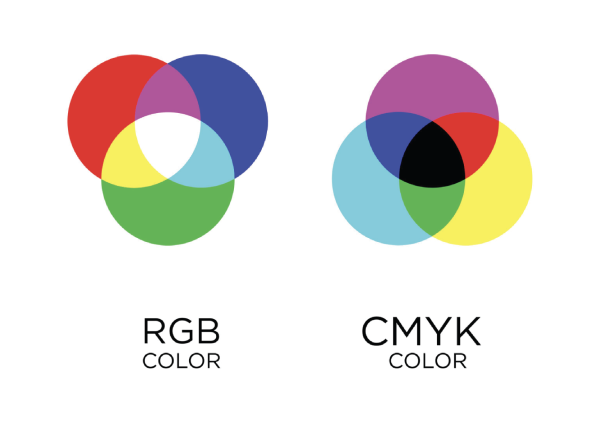
Screens display color using RGB (Red, Green, Blue), which allows for bright, glowing colors.
Printers use CMYK (Cyan, Magenta, Yellow, Black), which has a smaller color gamut (range).
AI images are generated in RGB by default. When converted to CMYK:
Bright blues may shift toward purple
Neon colors lose vibrancy
Skin tones may change subtly
This is one of the most common surprises customers encounter when printing AI artwork.
Image Types: Raster Formats vs Vector Formats
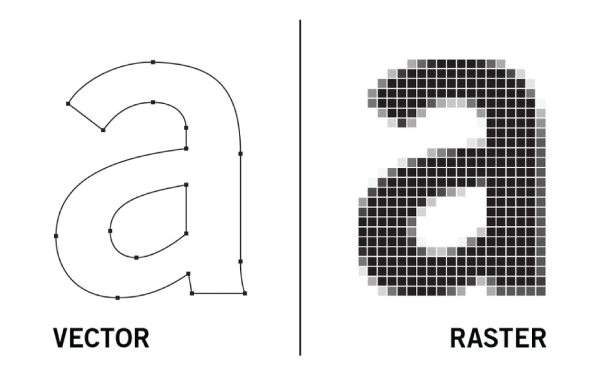
In graphic design, the difference between vector and raster files determines whether your artwork can scale without losing quality which is a critical factor to consider for any professional project.
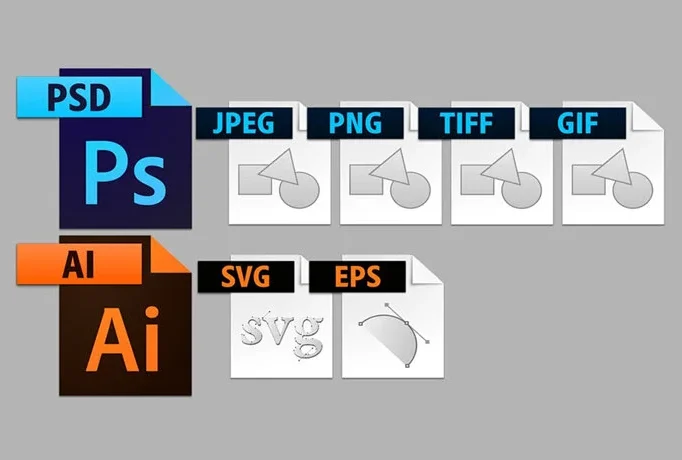
Vector files: use mathematical paths instead of pixels, allowing infinite scaling without quality loss. Ideal for logos, icons, and designs requiring frequent resizing. Common formats: AI, EPS, SVG, PDF.
Raster files: pixel-based with fixed resolution. Enlarging them beyond their original size causes pixelation and quality loss. Best for photographs and complex imagery that can’t be converted to vectors. Common formats: JPEG, PNG, TIFF, PSD.
File Format: Why JPG Isn’t Always Enough
Most AI tools export images as PNG or JPG. For professional printing:
TIFF or high-quality PDF is preferred
JPG compression can introduce artifacts
Vector formats (AI, EPS, SVG) are ideal for logos and text, but AI does not generate true vectors
This means AI artwork often needs additional preparation before it’s production-ready.
Dimensions: Square Images vs. Real-World Layouts
AI platforms typically generate square images (1024×1024 or 2048×2048). Printed products rarely are.
Banners, posters, backdrops, and displays require very specific dimensions. Cropping or stretching AI artwork after the fact can create awkward compositions or cut off important elements.
What AI Tools Typically Produce (And Why It’s Not Automatically Print-Ready)
Most popular AI platforms output files that share a few characteristics:
- RGB color space
- Screen-optimized resolution
- Fixed aspect ratios
- Small pixel dimensions
Even higher-end tools prioritize how an image looks on a monitor, not how it performs when printed at 6 or 8 feet wide.
If you plan to use AI art for printing, investing in higher-resolution models or paid tiers is strongly recommended to increase potential for upscaling. Lower-tier outputs are often difficult to near-impossible to upscale successfully for large-format printing.
Common Issues When Printing AI-Generated Graphics (And How to Spot Them)
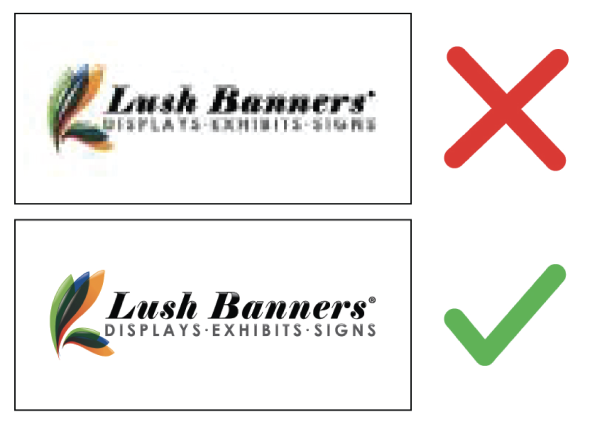
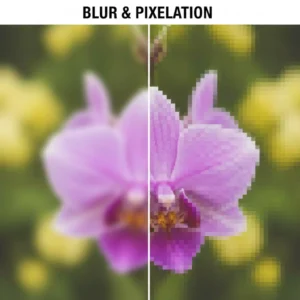
Blur and Pixelation
- What it looks like:
- Blur: Soft edges, lack of sharp detail
- What it looks like:
- Pixels: Visible squares or “stair-stepping” along curves and diagonal lines
- Why it happens: Insufficient resolution
- How to spot it: View at 100% zoom before printing
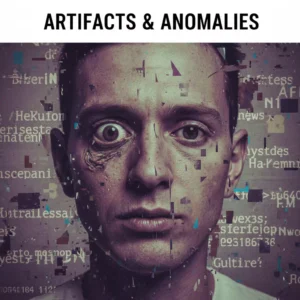
Artifacts and Anomalies
- What it looks like: Warped shapes, odd textures, unreadable text
- Why it happens: AI generation limitations (especially with text)
- How to spot it: Review the image at full resolution and zoomed in, not at thumbnail size.
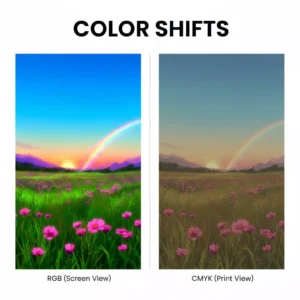
Color Shifts
- What it looks like: Dull or altered colors
- Why it happens: RGB to CMYK conversion
- How to spot it: Convert to CMYK and compare before printing
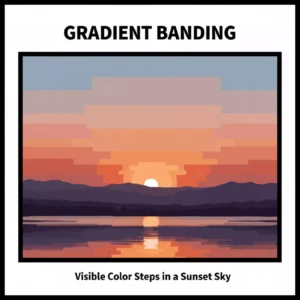
Gradient Banding
- What it looks like: Visible color steps instead of smooth transitions
- Why it happens: Compression and limited color depth
- How to spot it: Inspect skies, fades, and background gradients carefully
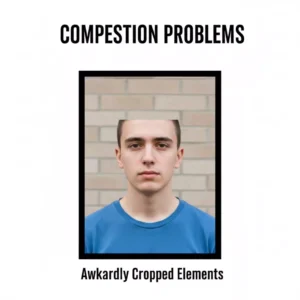
Composition Problems
- What it looks like: Cut-off elements or awkward spacing
- Why it happens: Square AI images are forced into rectangular formats
- How to spot it: Mock up the image at final print dimensions early
How to Prepare AI Graphics for Professional Printing
- Generate at the highest resolution available
- Inspect at 100% zoom
- Upscale carefully using professional tools
- Clean up artifacts manually
- Convert and adjust colors for CMYK
- Resize and format to exact print dimensions
Pro tip: Our free design services can save hours of trial and error. Send us your AI image, and we’ll tell you exactly what works and what needs fixing.
When AI Graphics Work Well for Printing (And When They Don’t)
AI Works Well For:
- Abstract backgrounds and textures
- Artistic or illustrative designs
- Large-format banners viewed from a distance
- Hybrid designs (AI background + real photos or vector text)
AI Is Not Ideal For:
- Product photography
- Text-heavy layouts
- Logos and brand-critical assets
- Close-up faces or people
- Rush projects with no time for cleanup
A helpful rule of thumb: If it needs to be perfect, AI alone isn’t enough.
Unsure whether your AI-generated artwork is truly print-ready?
Our experienced design team reviews AI artwork every day and knows exactly what will and won’t print well. Take advantage of our free design consultation and get honest, expert feedback before you print.
Visit our Free Design Options Center or call 800-818-3050 to get started.


